What all details HR department needs to update in a Staff's HR page ?
Introduction:
HRMS is an indigenous application which helps the Organization to accumulate and maintain the Human Resource data. This document illustrate what all details does the HR department needs to update in a staff's HR page.
Getting Started:
To access Human Resource Management System
Open an internet browser (Recommended to use Google Chrome)
Type https://my.amrita.edu/ and click enter
Login with your amrita email id and password.
Click HUMAN RESOURCES.
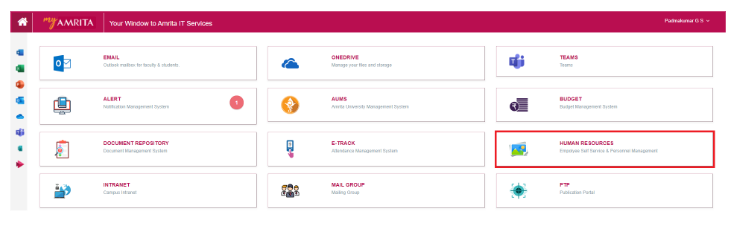
Each staff login will have a HR Page which is to be updated and maintained by the HR department.
The HR page consist of three sub-pages,
Basic Information
Other Information
Culmination of Service
Basic Information:
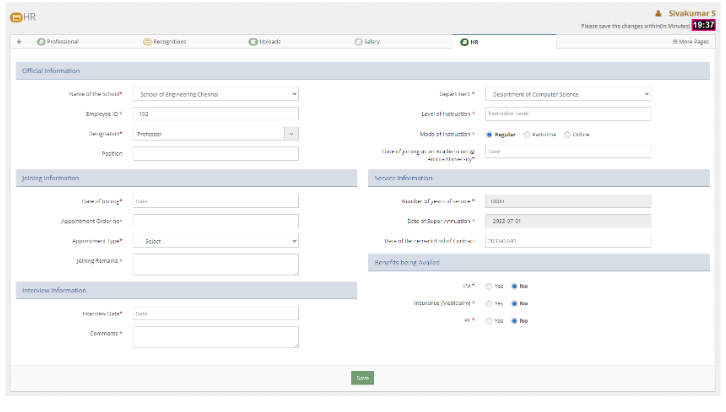
By default Basic information page will be loaded when you open HR page. Rest of the sub-pages will appear only if the basic information page is filled. Basic Information page consists of
Official Information
Depending on whether the staff is teaching or non-teaching the following details will be asked to fill
 - Name of the School
 - Employee ID
 - Designation
 - Position held
 - Level of Instruction
 - Mode of Instruction
 - Date of Joining as an Academician at Amrita
Joining Information
Here the following joining details are to be filled
  - Date of Joining
  - Appointment Order Number
  - Appointment Type
  - Joining Remarks
Service Information
Here the following service details are to be filled
  - Number of years of service
  - Date of Super Annuation
  - Date of Retirement / End of Contract
Number of year of service is calculated based on the Date of Joining.
Date of Super Annuation is automatically calculated based on the DOB of the staff.
Interview Information
Here interview information are to be filled
 - Interview date
 - any comments regarding interview
Benefits being Availed
Whether the following benefits are availed or not status need to be updated
  - ESI
  - Insurance
  - Provident Fund
Other Information:
Other Information page will get enable only when you fill and save Basic information page.
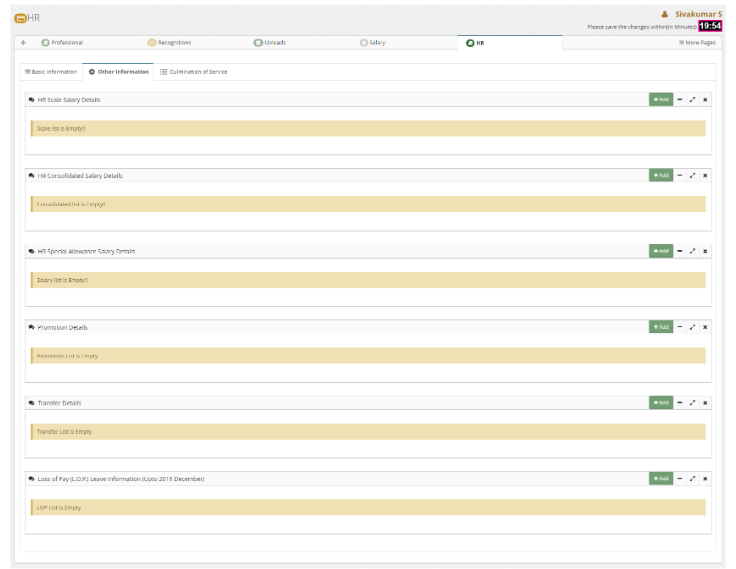
Other Information page consists of
HR Scale Salary Details
Scale Salary details can be added individually for each staff as well as through bulk import. (A separate document is available for this feature).
To add Scale salary individually, click on Add button.

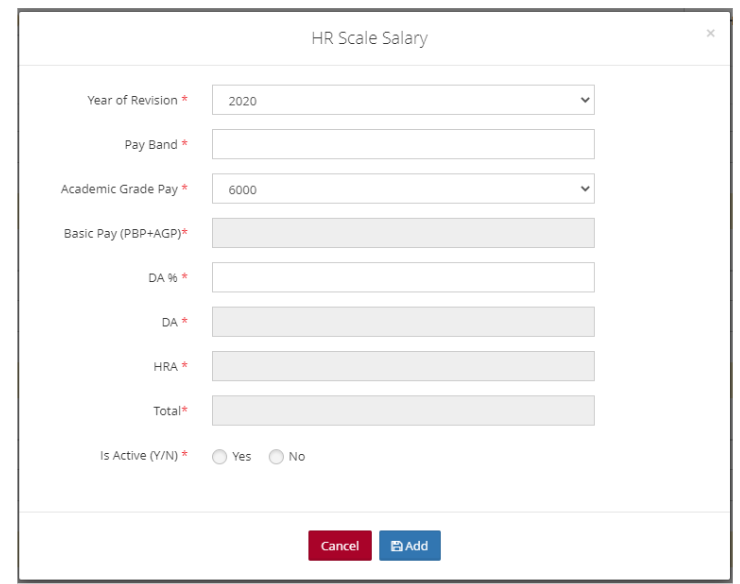
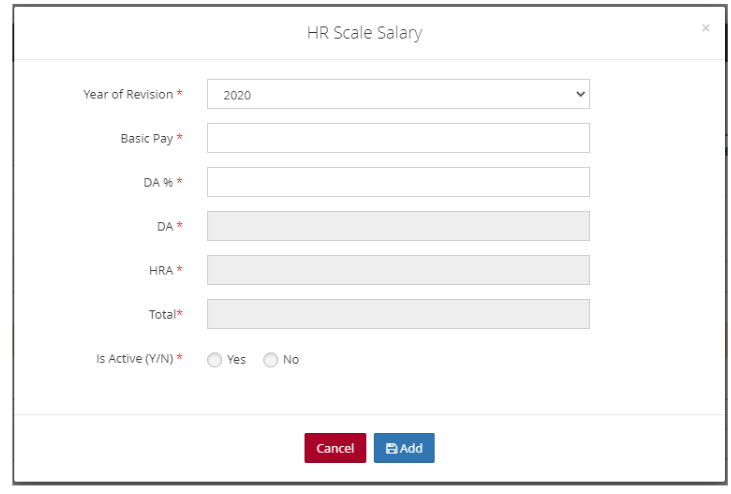
Here depending on whether the staff is teaching or non-teaching, the following details are to be filled and Click Add button.
For Teaching Staff:
Year of Revision
Pay Band
Academic Grade Pay
Basic Pay (PBP + AGP) - This is auto calculated by the application
DA Percentage - Based on the value we provide here, DA is calculated
DA - This is auto calculated by the application
HRA - This is auto calculated by the application
Total - This is auto calculated by the application
Is Active or not
Non-Teaching Staff:
Year of Revision
Basic Pay
DA Percentage
DA - This is auto calculated by the application
HRA - This is auto calculated by the application
Total - This is auto calculated by the application
Is Active or not
HR Consolidated Salary Details
Consolidate salary details can be added manually as well as through bulk import.
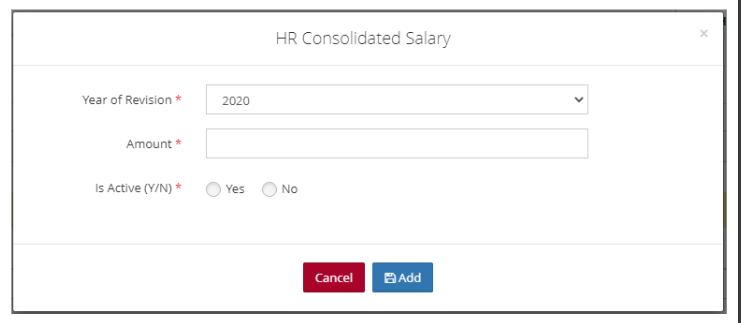
Here to add Consolidated salary details manually one by one click on Add button as displayed in the figure below.

The following details to be filled and click Add button.
Year of Revision
Amount
Is Active (Yes / No)
HR Special Allowance Salary Details
Special Allowance details can be added manually as well as through bulk import.
Here to add Special salary details manually one by one click on Add button as displayed in the figure below.

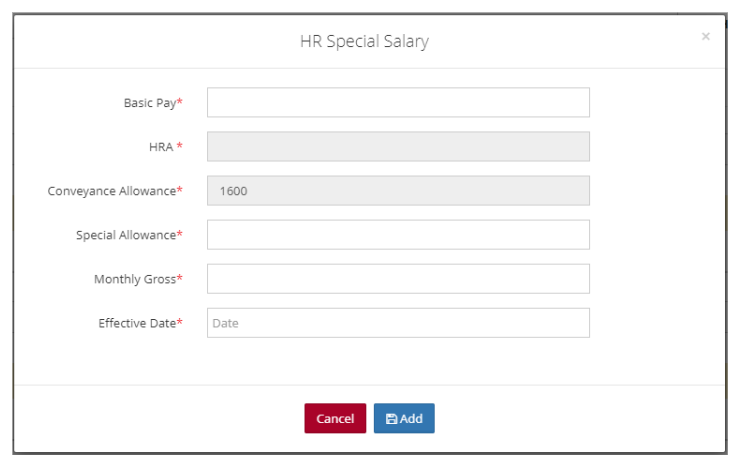
Special Salary window opens up. Fill the following details and click Add button.
Basic Pay (This is on the basis of Scale and is based on the position, qualification and experience of the candidate)
HRA (This is 10% of the Basic Pay)
Conveyance Allowance (This is fixed amount)
Special Allowance (Special Allowance is variable from 50% to 100% of the Basic Pay, depending on the performance of the person)
Monthly Gross (This is the sum of the above four (BP, HRA, CA, and SA))
Effective Date (This is the date from which the increased pay is made effective)
Promotion Details
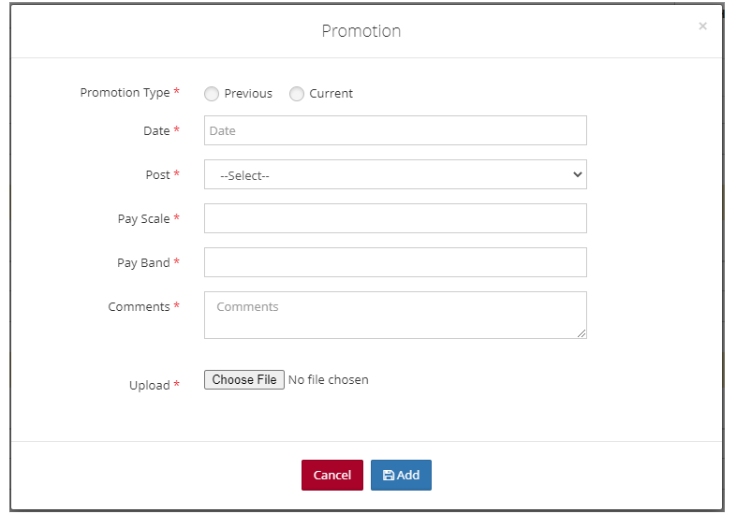
To add promotion details click on Add button in the Promotion details container.

Promotion window opens up. Insert the following details and click Add button.
Promotion Type
Date
Post
Pay Scale
Pay Band
Comments
Upload
Transfer Details
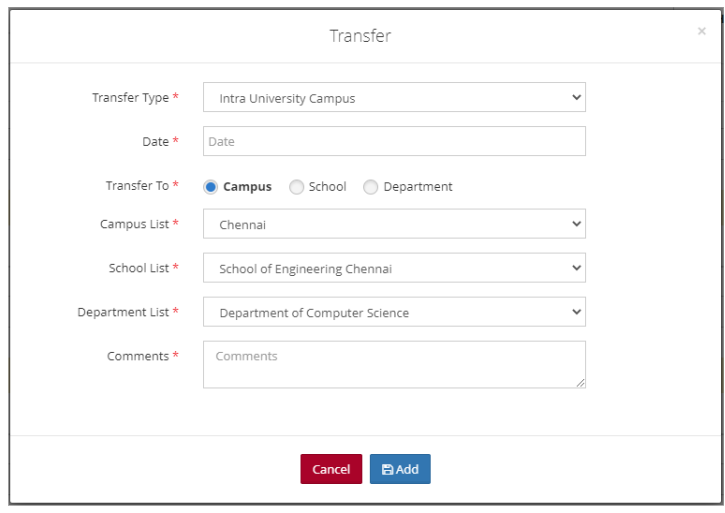
To add transfer details, click Add button in the transfer details container.

Fill up the following details and click Add button.
Transfer Type - Choose the transfer type.
Intra University
Inter Department / School
Date
Transfer To - Campus / School / Department
Comments
Depending on the option you choose for "Transfer To" the following will appear
Campus List
School List
Department List
Loss of Pay
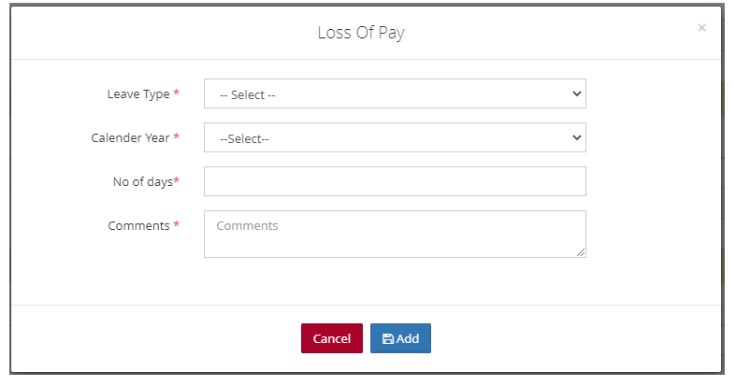
To add Loss of pay details, click Add button in the Loss of Pay container.

Fill the following details and click Add button.
Leave Type
Calendar Year
No of days
Comments
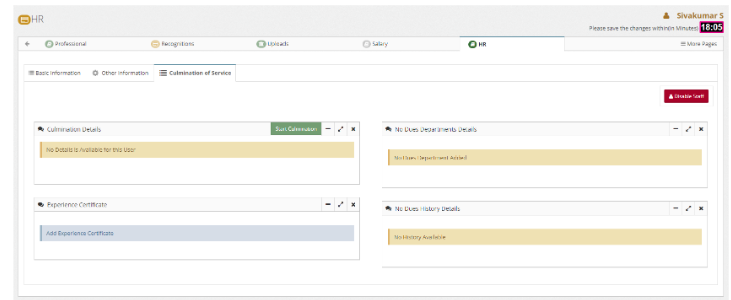
Culmination of Service:
Here the details regarding culmination of service of the staff needs to be updated. A detailed document regarding this feature is available separately.